
Managing group chats in Salve
How do I create a group chat conversation?
To create a new group chat conversation, click on the compose button:

Clicking on the compose button will bring up the new conversation modal, where you will be able to search for the patient(s) you would like to send your message to.
To include more than one patient to a new conversation, simply click on the '+' button next to the patient search fields, and search for the patient you'd like to include:
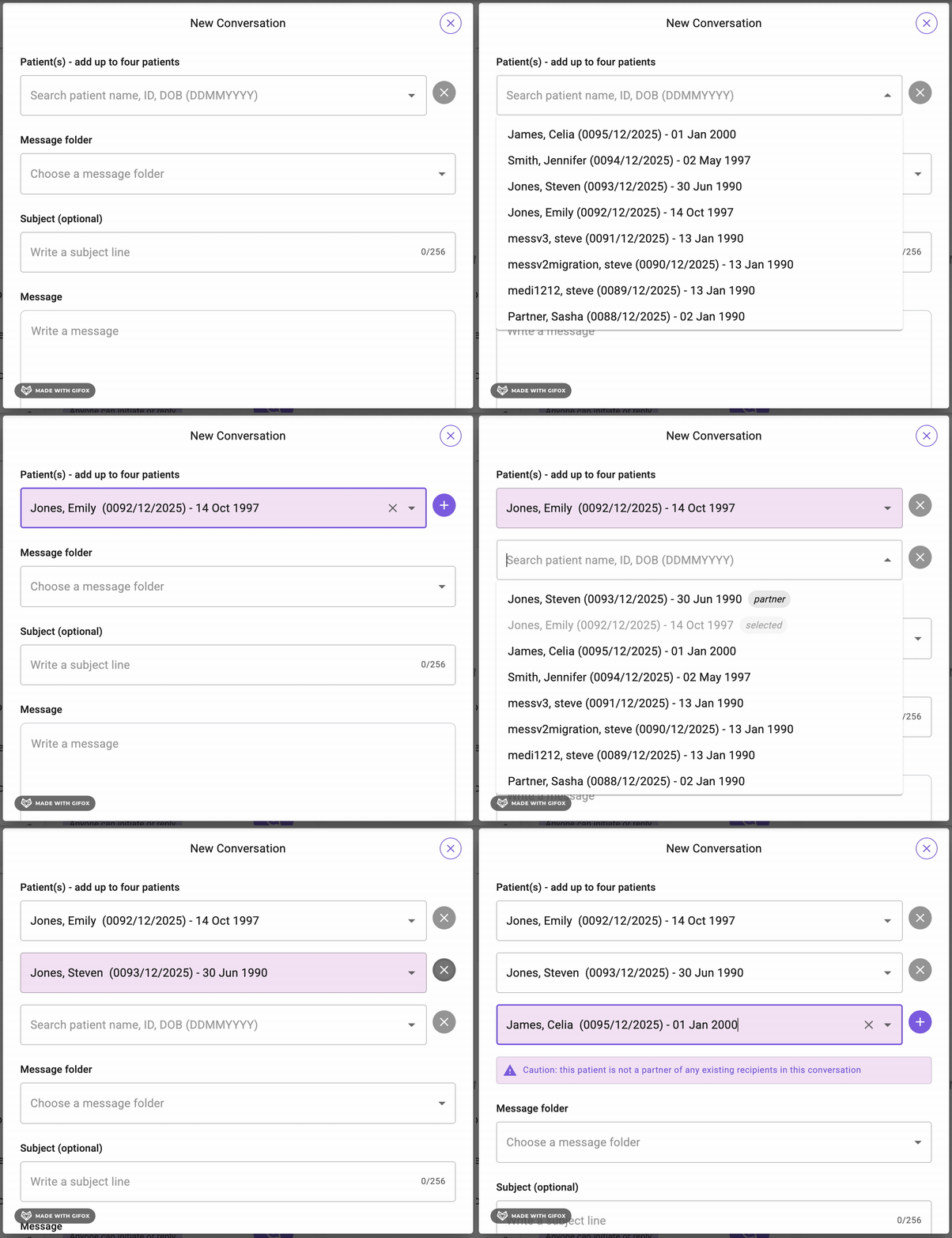
Once all of the patients you wish to include have been selected, you can proceed with selecting a message folder, entering a subject line, and writing the message as normal.
How do I add patients to an existing conversation?
To add a patient to an existing conversation, click on the actions button in the conversation, then the 'Add a patient' menu option to bring up the modal:
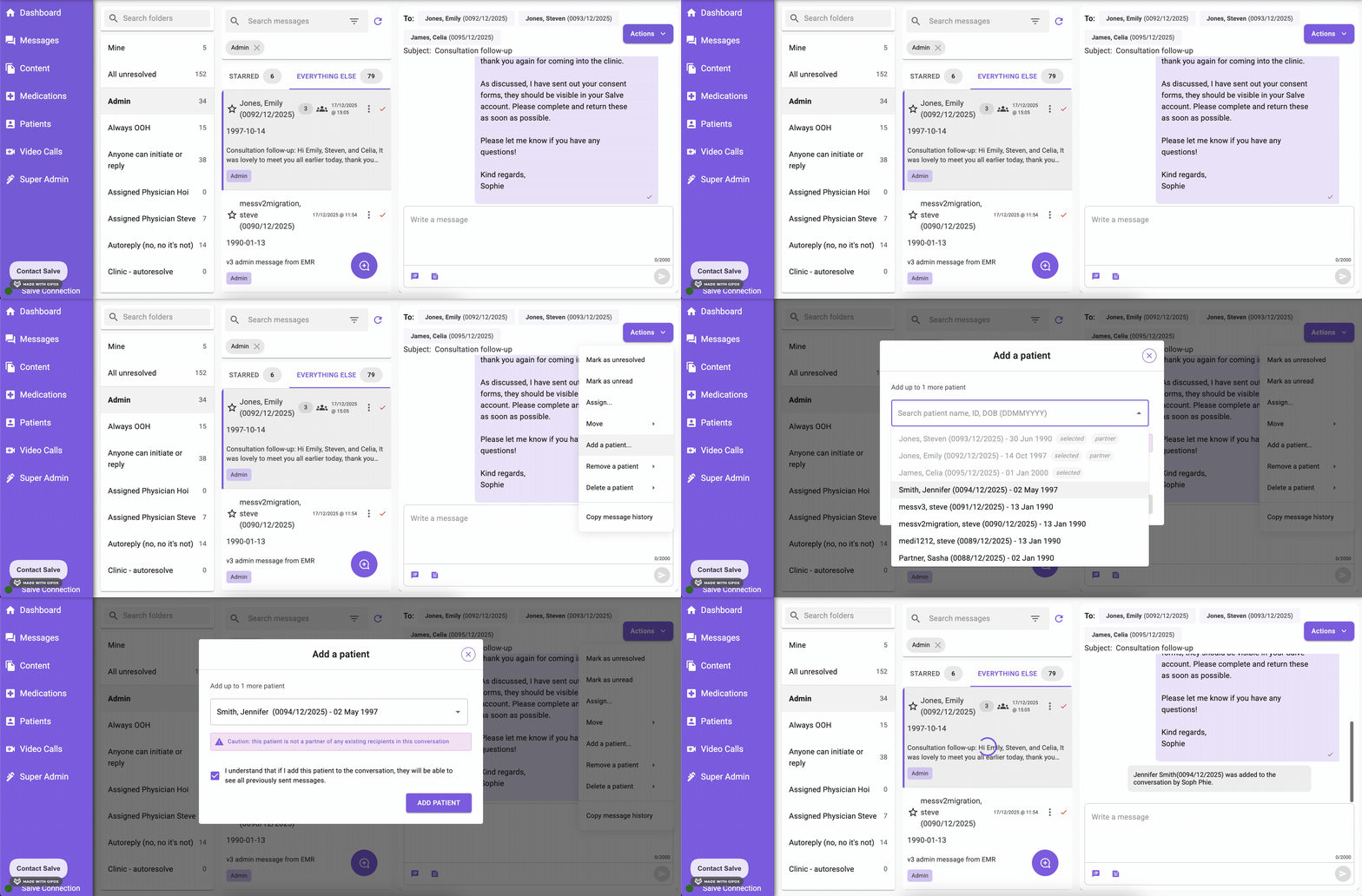
Once added, the patient will be able to view all historical messages from within the conversation.
How can I tell when patients have read a message?
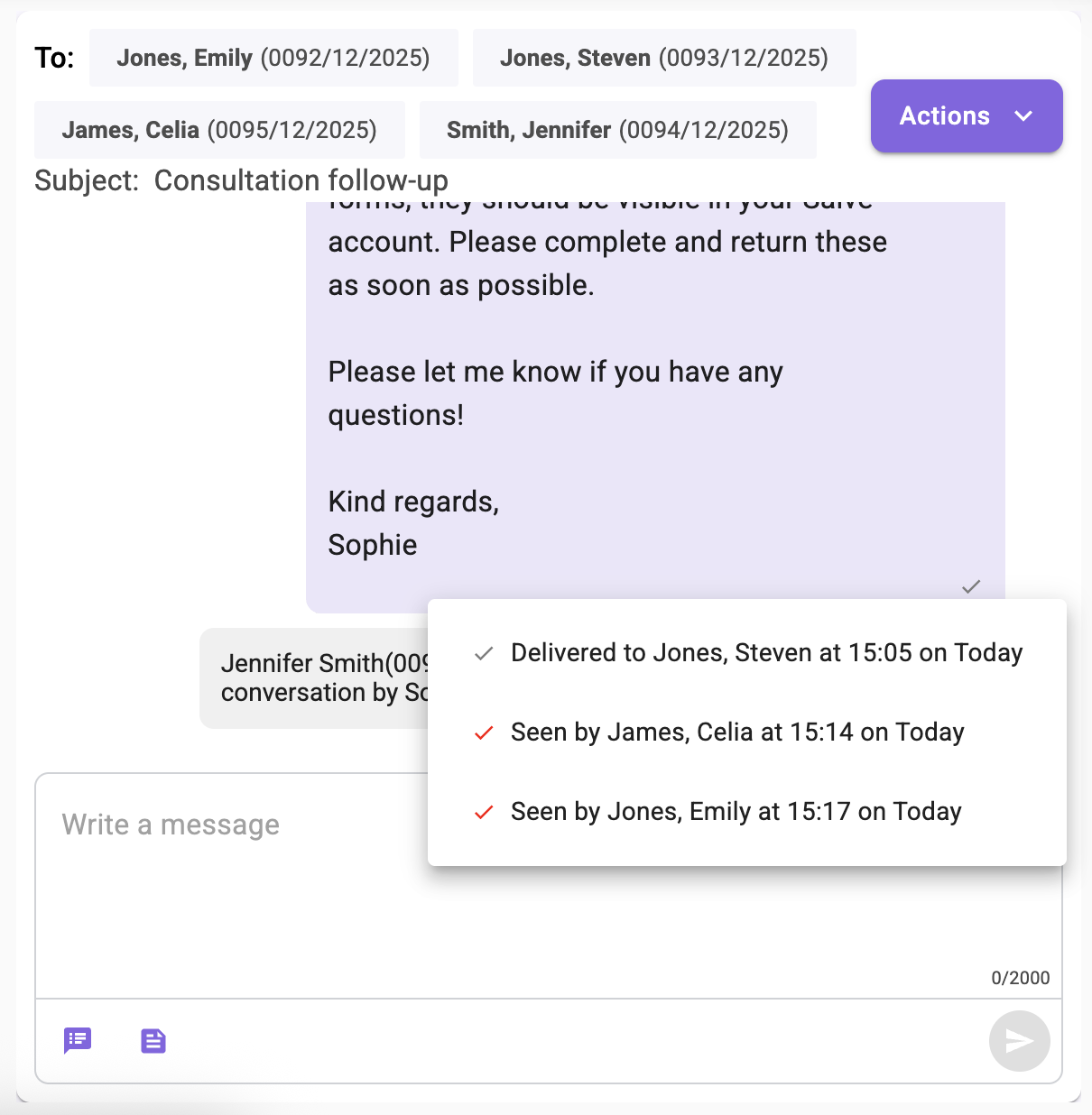
To see which patients have read a message sent by the clinic, simply click on the read tick on the message to bring up the dropdown of participants and their read timestamps:
How do I remove patients from a group chat?
To remove a patient from a group chat, click on Actions > 'Remove a patient', and select the patient you wish to remove to bring up the modal:
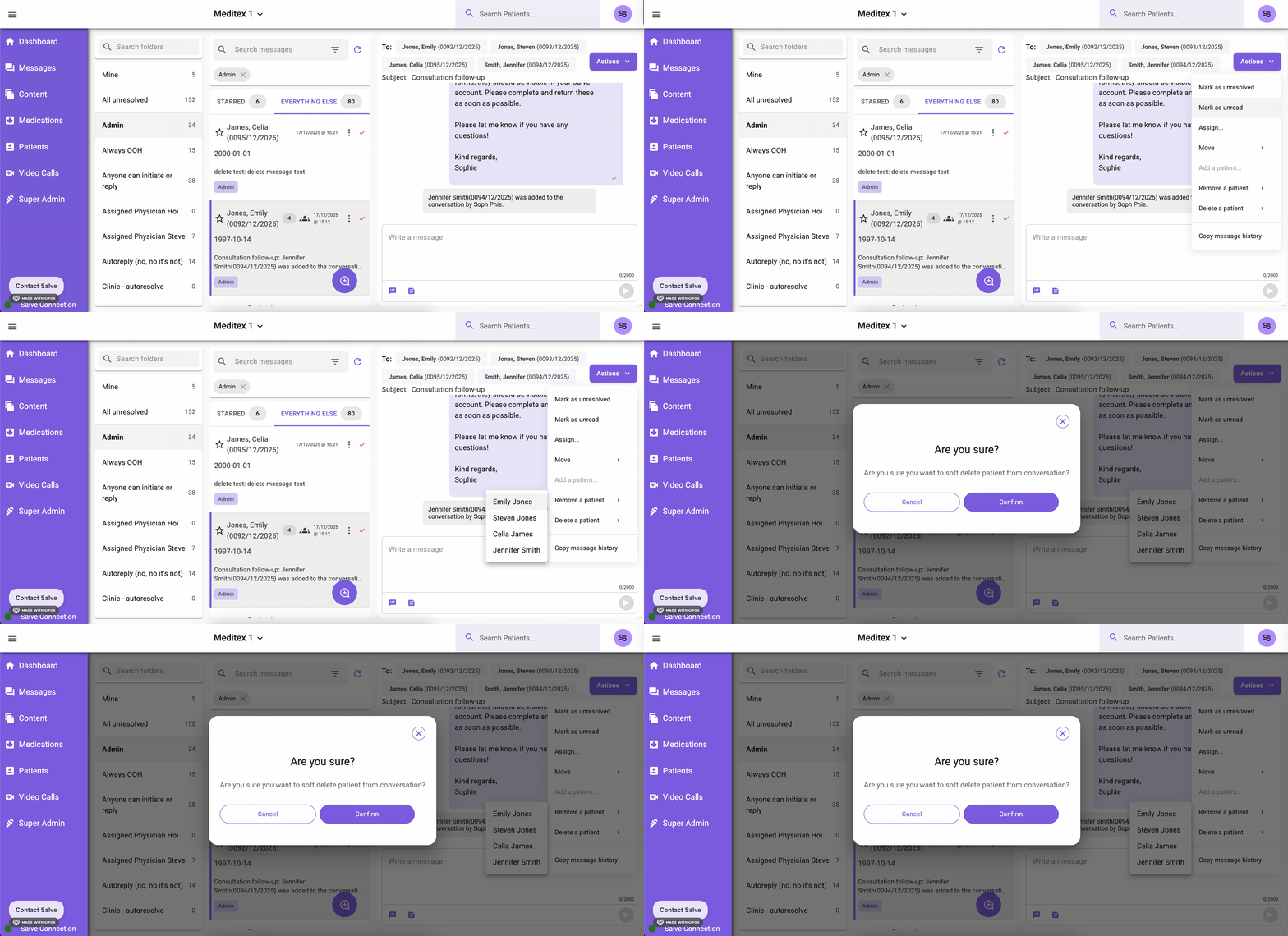
Once a patient has been removed, they will still be able to see the conversation history, but they won't be able to send or receive new messages for that conversation.
How do I delete a conversation from a patient's Salve account?
To delete a conversation from a patient's Salve account when, for instance, a patient is added in error, click on Actions > 'Delete a patient', and select the patient you wish to delete the conversation for to bring up the modal:
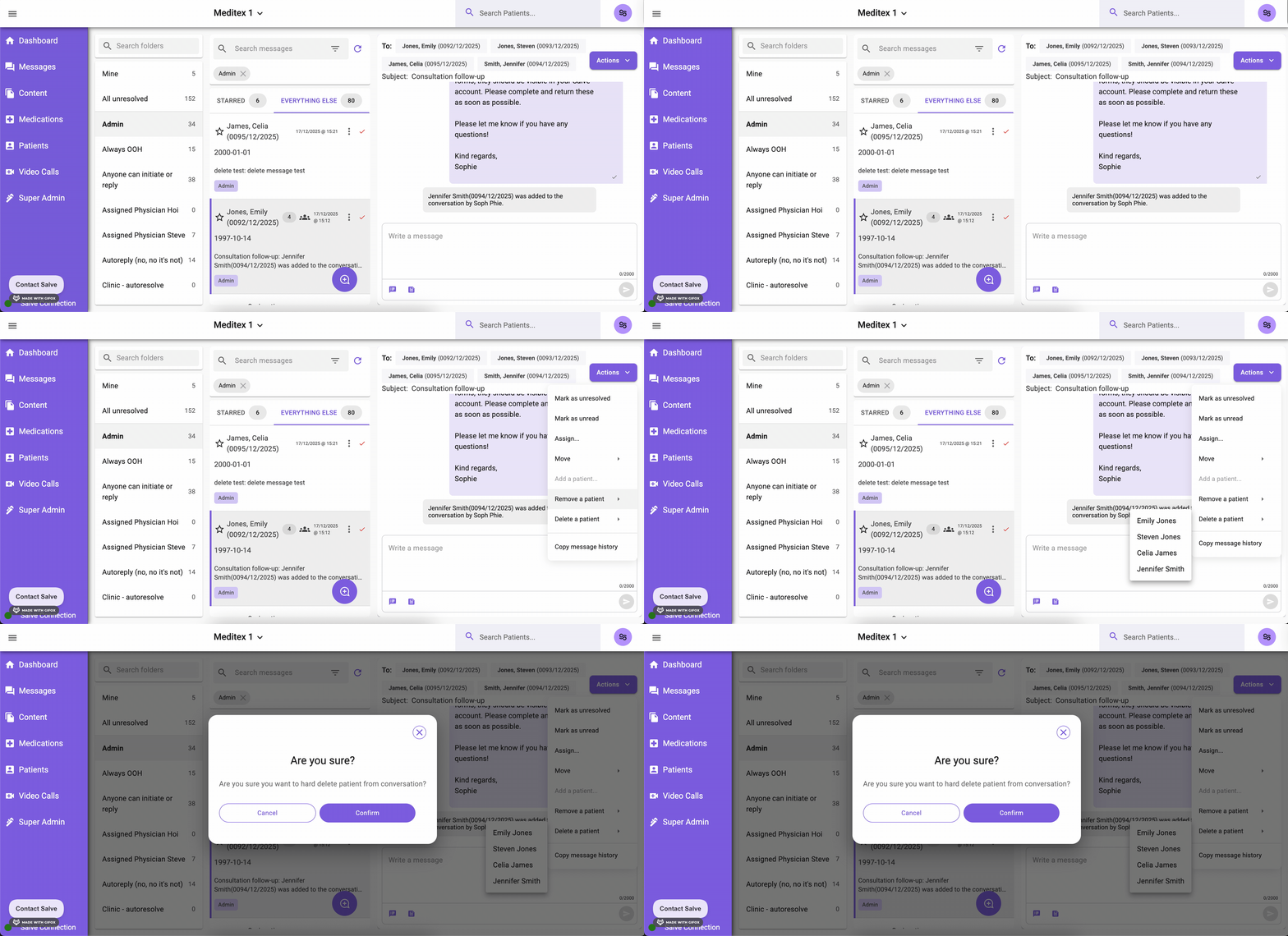
Once the conversation has been deleted for the selected patient, they will no longer be able to view any messages that have been sent, and they will not be able to send or receive messages for the chat.